


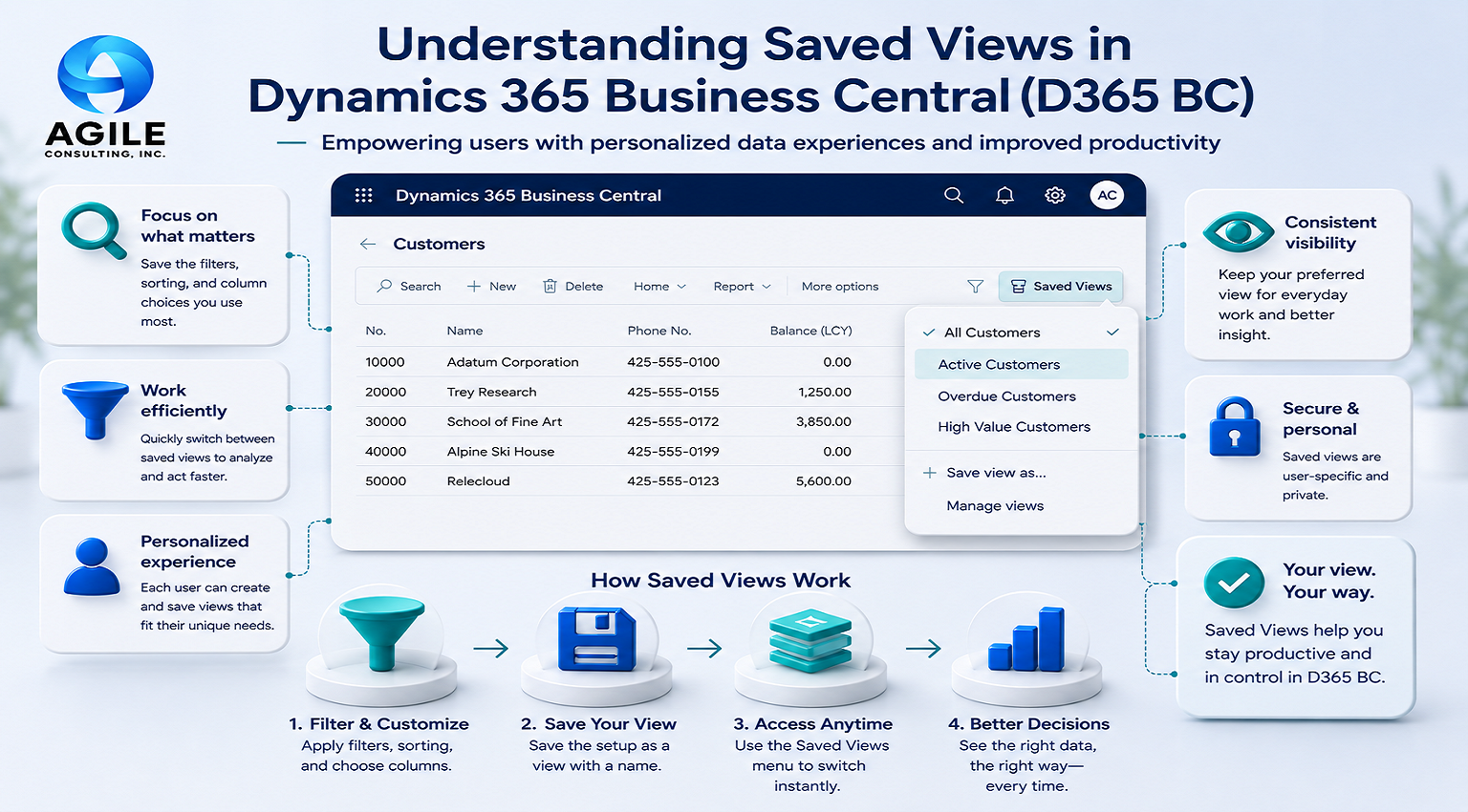
Empowering users with personalized data experiences and improved productivity
What Are Saved Views?
In Dynamics 365 Business Central (BC), Saved Views allow users to create customized ways of looking at data on list pages—like Customers, Vendors, Items, Sales Orders, and more. Rather than repeatedly applying filters, sorting, and column layouts, users can save their preferred configuration as a reusable “view.”
Think of Saved Views as your personal lens into Business Central data—tailored to your role, workflow, or task.
Why Saved Views Matter
Saved Views provide several key benefits:
Efficiency
No need to reapply filters or rearrange columns every time. With one click, your preferred layout is ready.
Consistency
Teams can standardize how they view key data, improving alignment across departments.
Flexibility
Each user can create views tailored to their responsibilities without impacting others.
Productivity Boost
Quick access to filtered, relevant data helps users make decisions faster.
Types of Saved Views
Business Central supports different types of views depending on how they’re created and shared.
1. Personal Views
• Created by individual users
• Visible only to the creator
• Ideal for personal productivity
2. Shared Views (Role or Admin-defined)
• Created by power users or administrators
• Shared across users or roles
• Useful for standardizing reporting or workflows
How to Create a Saved View
Creating a Saved View is simple and user-friendly:
1. Open a List Page (e.g., Customers)
2. Apply:
o Filters (e.g., Country = USA)
o Sorting (e.g., Name ascending)
o Column layout (show/hide fields)
3. Select “Save As” or “Save View As”
4. Provide:
o A meaningful name (e.g., “Active US Customers”)
o Optional visibility settings
5. Click Save
Your view is now available from the Views dropdown.
Example Use Cases
Sales Team
• “Open Sales Orders – This Week”
• Filters: Delivery Date = Current Week
Finance Team
•“Overdue Customers”
•Filters: Balance > 0, Due Date < Today
Inventory Management
• “Low Stock Items”
• Filters: Inventory < Reorder Point
Management
• “Top 10 Customers by Revenue”
• Sorted and filtered for quick executive insight
Managing Saved Views
Users can easily manage their views:
• Edit: Adjust filters or layout, then save updates
• Rename: Keep naming consistent and meaningful
• Delete: Remove outdated views
• Pin Views: Add frequently used views to navigation for quick access
Permissions & Governance
While personal views are flexible, governance is important for shared environments:
• Admins can control who creates shared views
• Naming conventions should be standardized (e.g., prefix by department)
• Avoid clutter by periodically reviewing and cleaning up unused views
Best Practices
Here are some tips to maximize the value of Saved Views:
✔ Use Descriptive Names
Avoid generic names like “Test View.” Instead use “Vendor Payments Pending Approval”
✔ Standardize for Teams
Create shared views for common workflows to ensure consistency
✔ Limit Over-Creation
Too many views can be confusing—focus on the most useful ones
✔ Combine with Personalization
Use views alongside page personalization (columns, factboxes) for a complete experience
✔ Train Users
Even a short demo can dramatically increase adoption and productivity
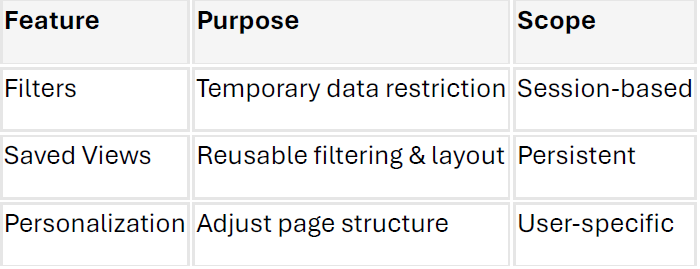
Saved Views vs. Filters vs. Personalization
Final Thoughts
Saved Views in Dynamics 365 Business Central are a simple yet powerful feature that can dramatically improve how users interact with data. Whether you’re a finance manager, sales rep, or system administrator, leveraging Saved Views can help you:
• Focus on what matters
• Reduce manual effort
• Standardize processes
• Enhance decision-making
Call to Action
If your organization hasn’t fully adopted Saved Views yet, now is a great time to start:
• Identify common filtering needs across departments
• Create shared views for consistency
• Encourage users to personalize their experience
Small changes like this can lead to big productivity gains across your Business Central environment.
Credits & Legal Notice
• Copyright (c) Agile Consulting, Inc.
• Author: AG Ghazali, MCP, MCTS
• Website: www.agile-usa.com
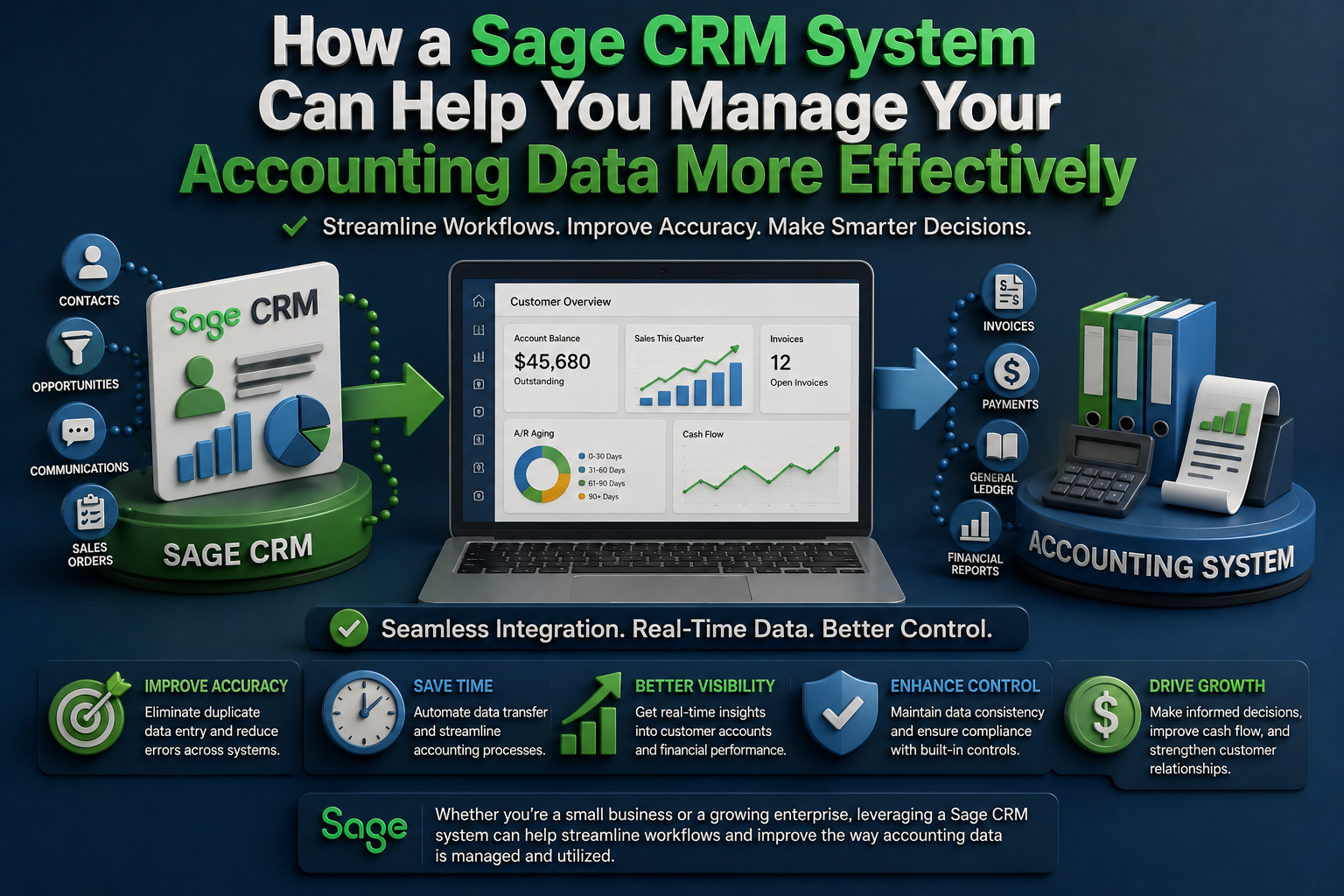
How a Sage CRM System Can Help You Manage Your Accounting Data More Effectively
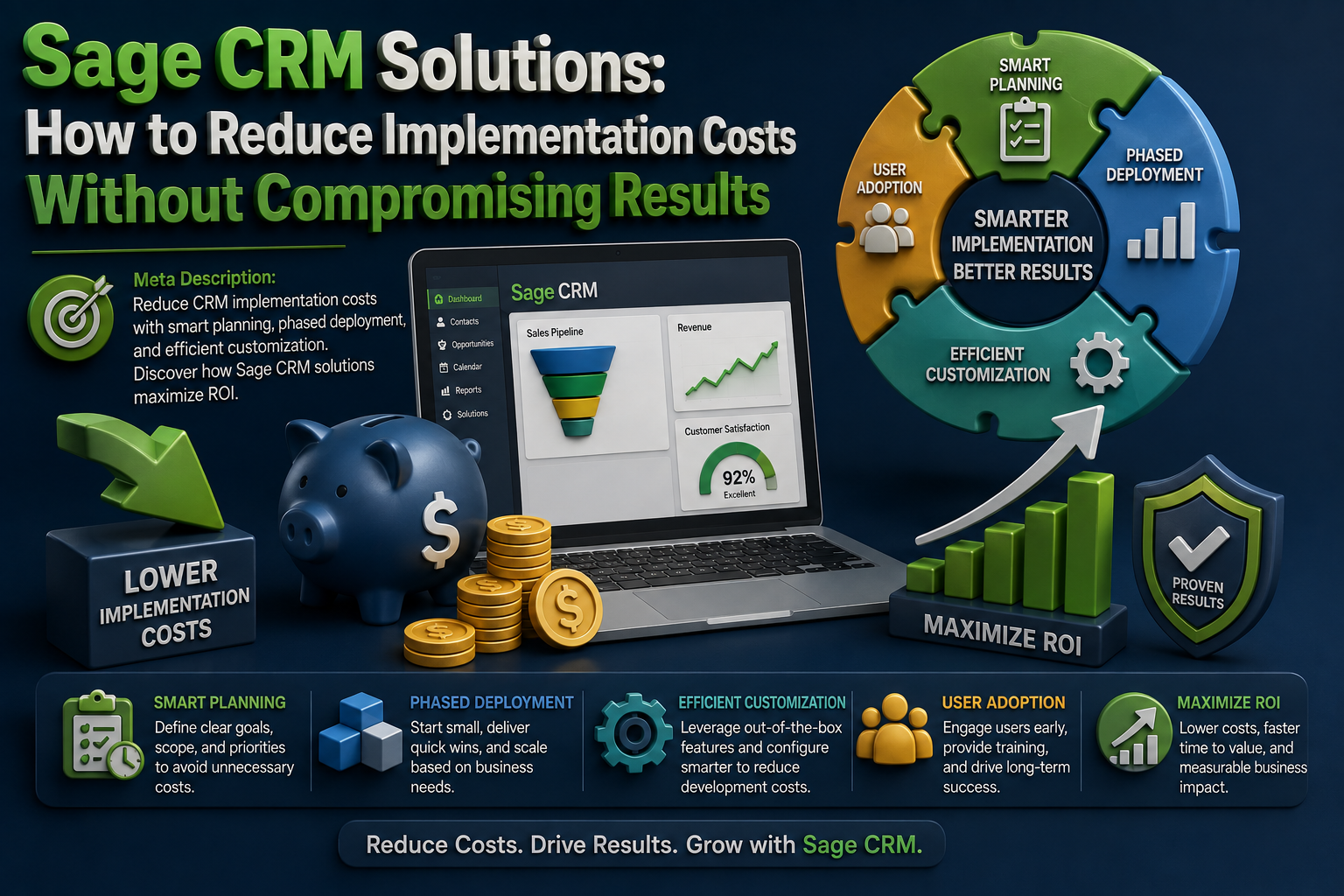
Sage CRM Solutions: How to Reduce Implementation Costs Without Compromising Results
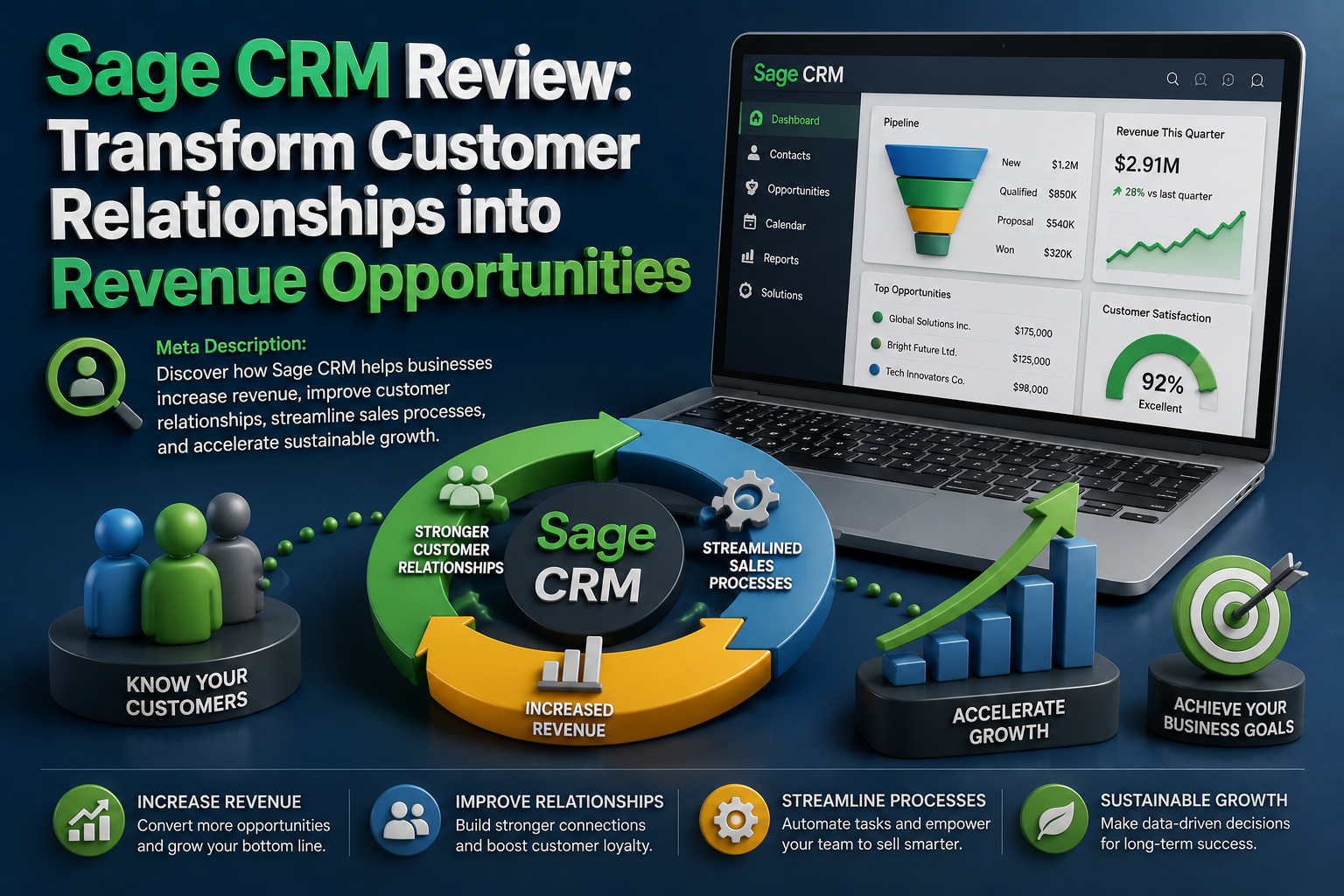
Sage CRM Review: Transform Customer Relationships into Revenue Opportunities
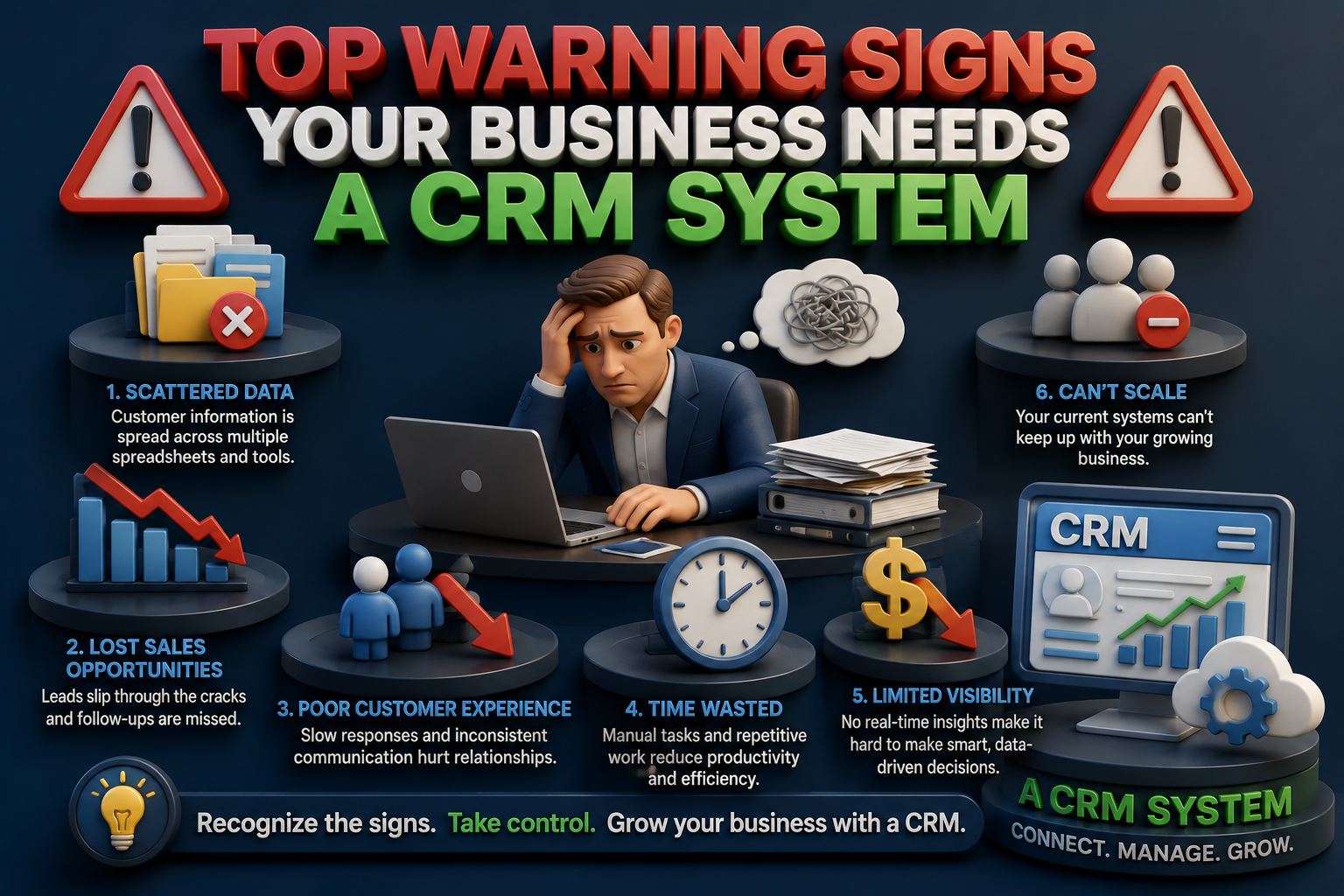
Top Warning Signs Your Business Needs a CRM System
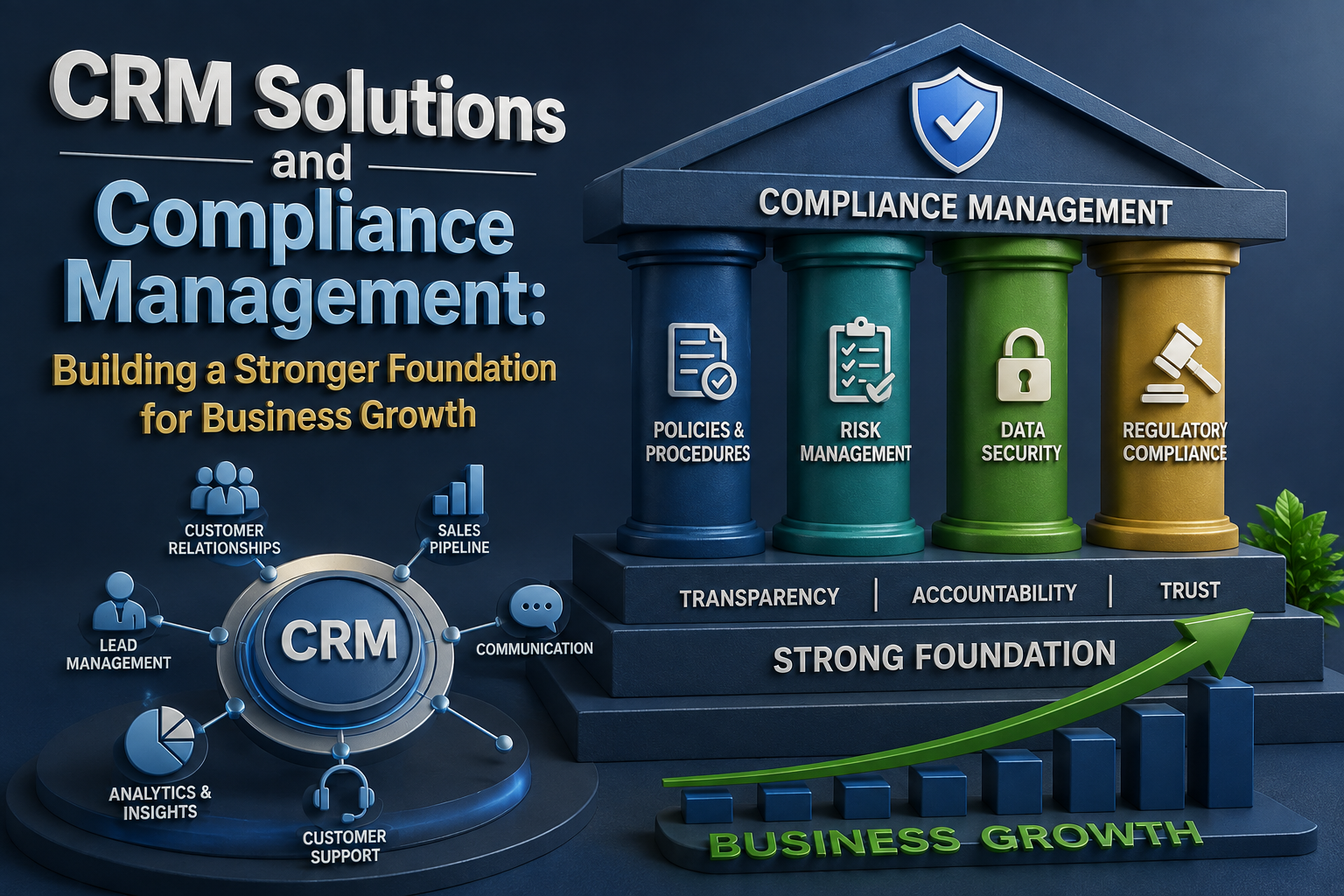
CRM Solutions and Compliance Management: Building a Stronger Foundation for Business Growth